|
|
Using the Project Files Control Bar |

The Project Files Control Bar
Displaying or hiding this control bar:
- The Project Files control bar is disabled by default and can be toggled by activating the System ribbon and select Show | Project Files Bar
-
The Project Files control bar is disabled by default but can be displayed/hidden using the toggle-project-files-bar command
The Project Files control bar is used to manage the files in the project folder. It categorizes them in folders according to a file type, e.g. points, strings, block models, macros, etc.. This is the tool for adding or removing files from the project, previewing or opening a Datamine file in the Datamine Table Editor, loading files into memory; copying and exporting project files.
Follow the links below to find out more:
Project, Folder and File Context Menus
Adding and Overwriting Existing Files
The
Project Files Toolbar
This toolbar is located at the top of the Project Files control bar and contains the following buttons:
|
|
Description |
|
|
Collapse all folders in the Project Files tree. |
|
|
Refresh the project files list. (This will also update the icons representing each file type). |
|
|
Add new files to the project. |
|
|
Add existing files to the project. |
|
|
Import external data files, saving them to *.dm format and adding them to the project. |


Project. Folder and Files Context Menus
Right-clicking on the project, a folder or a file in the Project Files control bar will display one of three context menus:

|
For a full list of project file icons and their meanings, please see Project Icon Reference. |
Project-Level Context Menu
The following menu is displayed if the project icon at the top of the tree is right-clicked:
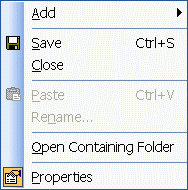
Field Details:
Add: add files to the current project, using one of the following menu options:
|
|
Note that all file paths that are referenced by your system cannot exceed 128 characters in length. |
-
New File: add a new Datamine table or macro file to the current project; opens the Add a New File dialog. More...
-
Existing Files: add existing Datamine binary files (.dm) to the current project; opens a file browser dialog.
|
|
|
-
Import Files: import external data files, saving them to *.dm format and adding them to the project, using the Data Source Drivers utility. These files will be converted for use within your application, but a link to the original file will be maintained.
Save: save the current project file and associated settings.
Close: close the current project file, and if changes have been made to any loaded files, a prompt will be displayed to allow each qualifying file to be saved.
Paste: if file data has been copied to the clipboard, it can be pasted into the selected project using this command.
Rename...: rename the current project file.
Open Containing Folder: open a Windows Explorer window and display the contents of the project folder.
Properties: open the Project Properties dialog and display the project's summary, contents and other properties. A subset of this information is also displayed in the Properties control bar when the project is selected.
Folder-Level Context Menu
This following menu is displayed if a folder icon is right-clicked:
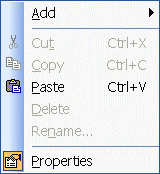
Field Details:
The following fields are available:
Add: add files to the current project, using one of the following menu options:
|
|
Note that all file paths that are referenced by your system cannot exceed 128 characters in length. |
-
New File...: create a new table or macro file using the Add New File dialog. More...
-
Existing Files...: opens a file browser dialog to allow you to select a file (or files) to add to the current project.
|
|
|
-
Import Files...: displays the Data Import dialog to permit import of file data from non-Datamine sources, using the Datamine Data Source Driver facility.
Paste: paste a copy of a previously selected file(s) into the relevant project folders.
Properties: displays general folder properties in the Properties control bar.
File-Level Context Menu Options
Right-click a file to choose from one of the following options:
|
|
Not all commands in this section may be available. For instance, the Re-import option is only available if the data was originally imported using Data Source Drivers. |
Open: open the selected file in the Datamine Table Editor , for viewing and/or editing the file's contents.
Load: load the selected
file(s) into memory.
Another useful feature of this command is that it can be used in conjunction
with the <Ctrl> key held down to initiate a pre-filter of loaded
data.
|
|
Selected file(s) can also be loaded using drag-and-drop into any of the data windows. |
Preview: view the selected file in the File Previewer utility. Use this utility to preview 2D or 3D data before or after it is loaded into memory.
Display: display the selected Plots file in the Graphics window; this command launches DISPLA.
Re-Import: if the selected file was imported using the data source drivers, re-import it using the already associated driver and import settings. Use this option when the source file has been edited and the changes need to be shown in the resulting import *.dm file.
Export...: export the file to one of a variety of non-Datamine file formats; the Export Data dialog is displayed.
Remove From Project: remove the selected file(s) from the project.
| This is not the same process as unloading data, which merely removes data from memory. Removing a file from the project, then saving the project file, will 'break' the association between the project file and the removed file. |
Cut: cut the selected file(s) to the clipboard and remove it from the project.
Copy: copy the selected file(s) to the clipboard.
Delete: delete the selected file from disk.
 | This action will REMOVE THE FILE FROM DISK, not just remove it from the project, so care should be taken when using this command as it cannot be undone. A confirmation dialog will be displayed before this action is performed. |
| The shortcut key combination <Ctrl> + <Delete> can be used to delete the selected project files from disk. |
Rename...: rename the selected file, on disk and in the control bar.
Open Containing Folder: opens a Windows explorer view, showing the selected file location on disk.
Share to Summit: share a file to Datamine's Summit data management system (for more information, contact your local Datamine representative).
Properties: display general, table and file attributes in the Properties control bar.
Sharing Data using SUMMIT

Your application integrates Datamine Summit functionality using a dedicated data window.
The Project Files control bar allows you to right-click any table associated with your project, and use the Share to Summit option to automatically upload it to the Summit URL specified in the Project Options dialog.
Note that a valid account must exist for the Summit portal you are accessing.
Adding and Overwriting Existing Files
Your application checks for the duplicate addition of files to the project .The following scenarios are possible:
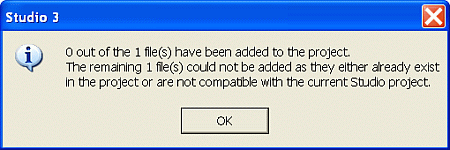
Adding a file to the project, which is located in the project folder, and which has already been added to the project, will result in the following warning message being displayed:
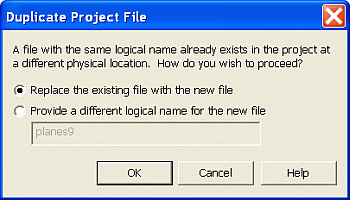
Adding a file to the project, then adding a second file of the same name, where each of these files reside in different folders, one of which could be the project folder, will result in the Duplicate Project File dialog being displayed:
Loading Data
When loading data into memory from the Project Files control bar, the following options are available:
Loading Data into Memory: unless a file has been loaded into memory, it cannot be viewed in the data windows (providing the file contains viewable data). The Project Files control bar supports a drag-and-drop interface that allows you to load a file (thus making it an object) by left clicking a file, holding the button down and dragging it into either the Plots,or 3D windows.
When a file has been loaded, the view of the data will be automatically updated.Loading Filtered Files: it is possible to filter data as part of the loading process by holding down the <Ctrl> key when using either the file's context menu option or the drag-and-drop method. This displays the Object Filter dialog, appropriate to the data type(s) being loaded, allowing Data Fields, Coordinate Fields, Control Fields and Filters settings to be defined.
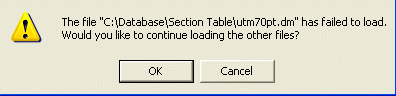
Loading Multiple Files: it is possible to select more than one file from the Project Files control bar, and drag them simultaneously into a data window to load multiple files in a single action. If an object fails to load, for example, if you elect to filter incoming data using the <Ctrl> key (see above) and you Cancel the filter dialog for a particular file, you will be given the option to load the remaining files, e.g.:
 | Related Topics |
| Browser
Bars Project Icon Reference |